If your Windows PC has gone slow, restart it, then press Ctrl + Shift + Esc and see whether the processor, memory or disk is busy. Trimming startup apps, freeing storage space and running a Windows Security scan fixes most cases. If it freezes, clicks or will not open your files, back them up before trying anything bigger.
Find the cause before you pay for a "speed booster" or replace the machine. Most of the checks below are safe for a home user, take a few minutes each, and tell you whether the problem is software, storage, heat or something that needs a technician.
Start with the symptom
Think about when the slowdown began. A PC that slowed after an update or a new installation points at that change. If it struggles only when you have lots of browser tabs open, memory is the likely culprit. Months of gradually slower starts suggest something else again. This table gives you a first move for each pattern.
| What you notice | Possible explanation | First move |
|---|---|---|
| The whole PC is slow straight after you sign in | Too many startup apps or background work | Restart, then inspect startup apps |
| The mouse moves, but one program hangs | That program may be stuck or short of memory | Save your work elsewhere and check Task Manager |
| Everything pauses while the disk stays busy | A full or struggling drive, or an update or sync job | Check storage space and disk activity |
| Only websites or video calls are slow | Wi-Fi, broadband or a browser problem | Try a local app, and another device on the same network |
| The laptop gets hot and the fan is loud | Heavy processing or restricted cooling | Check CPU use and keep the vents clear |
| The slowdown started with pop-ups or a suspicious download | Unwanted software or malware | Run a Windows Security scan |
If only online tasks are slow, open a saved document and see how the PC responds. A responsive offline app points at your connection or your browser, so look at those before you spend money on hardware.
Find the bottleneck in Windows
Press Ctrl + Shift + Esc to open Task Manager. On the Processes tab, click the CPU, Memory or Disk column heading to sort by whatever is busiest. Then do the thing that usually feels slow and watch the numbers for a few minutes. Updates and scans cause short spikes; activity that stays high while you are doing very little deserves a closer look.
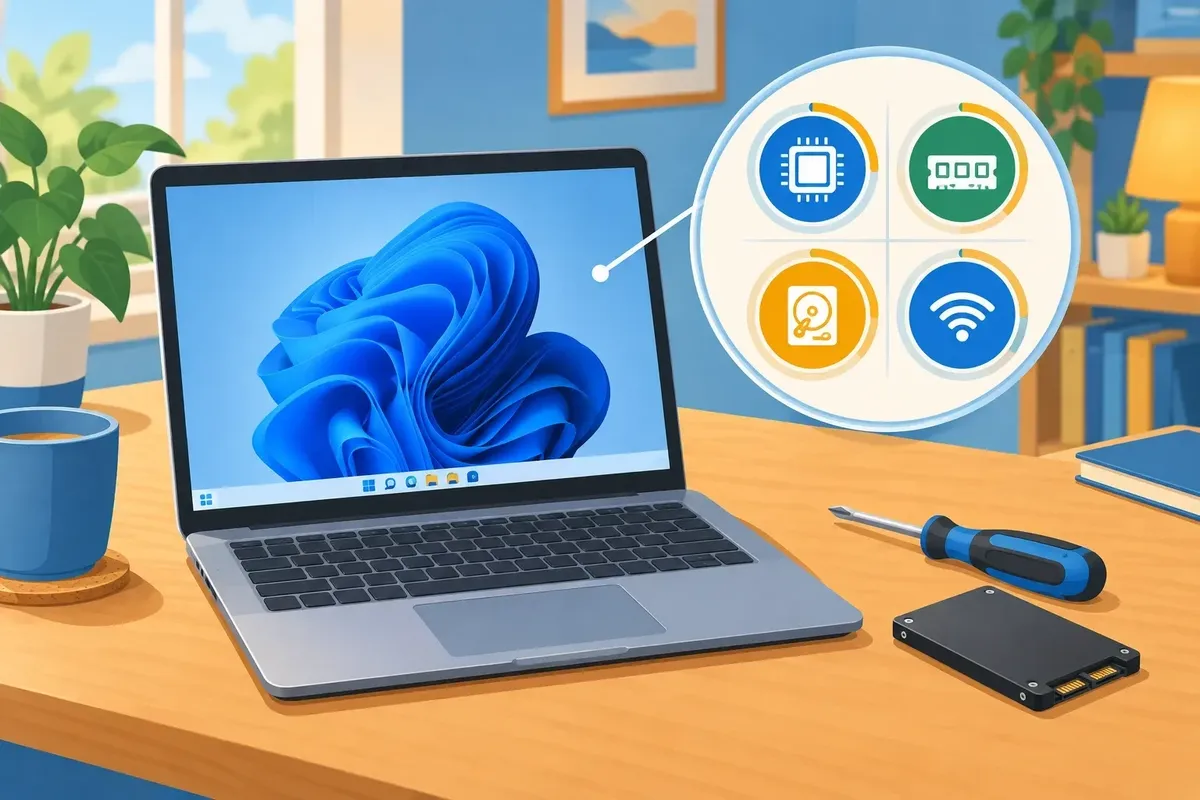
- CPU stays busy: note the name of the app using it. Close an obviously misbehaving app after saving your work, then reopen it. Leave unfamiliar Windows processes alone.
- Memory is nearly full: close spare browser tabs and apps. If that cures it but the problem returns whenever you work normally, more RAM may help, if your model allows it.
- Disk is constantly busy: look for an update, backup or cloud sync in progress. If the machine has an older hard disk drive (HDD), its storage may be the main source of delay.
- Network is busy but the PC otherwise responds: a download, backup or video call may be using the connection rather than slowing the processor.
100% Disk in Task Manager simply means the drive is busy. To see how full it is, open Settings > System > Storage. In Task Manager's Performance view, select the disk to see whether Windows labels it an HDD or an SSD before you think about an upgrade.
Write down the process name and what you were doing when the PC slowed. If you do end up needing a technician, that gives them a place to start.
Safe fixes to try at home
Test the computer after each change so you know what helped. Save your work first, and before anything bigger, such as a reinstall, a drive upgrade or a more involved repair, back up the files you cannot replace.
Restart and let updates finish
Choose Start > Power > Restart. Closing a laptop lid may only put it to sleep, which is not the same thing. If Windows is updating, give it time to finish and restart when asked. Then open Settings > Windows Update and select Check for updates. Under Advanced options > Optional updates you may also find a driver update that helps. Keep security updates in place even if the PC feels slow.
Reduce startup apps
Open Settings > Apps > Startup, or select Startup apps in Task Manager. Turn off a chat app or game launcher you recognise but do not need at sign-in. It stays installed and you can still open it when you want it. Leave security and backup software alone. Microsoft says the same thing:
"Apps that run at startup can slow boot time and increase background usage." Microsoft Support: tips to improve PC performance in Windows
Make space without losing files
Open Settings > System > Storage to see where the space has gone. Windows counts you as low on space when the capacity bar turns red. Select Temporary files to review and remove them, or turn on Storage Sense, which clears temporary files and old Recycle Bin items. It is off by default, and it leaves your Downloads folder and OneDrive alone unless you tell it otherwise (see Microsoft's Storage Sense guide). Read what each category contains before deleting anything, especially Downloads and the Recycle Bin. If space is tight, move personal files to a backed-up location.
Skip registry cleaners and "one-click" tune-up packages. They may change settings while leaving the cause of the slowdown untouched.
Check power mode and unused apps
A laptop left in a battery-saving mode can feel sluggish. Look under Settings > System > Power & battery and check the power mode while the charger is plugged in. Then open Settings > Apps > Installed apps and remove programs you know you no longer use. If you are not sure what something is, leave it.
Check the browser and scan for malware
If the slowdown happens mainly online, close spare tabs and remove browser extensions you no longer use, then try again. If other programs are slow too, open Start > Settings > Privacy & security > Windows Security > Virus & threat protection and select Quick scan.
Scam warnings, unexpected requests for remote access or odd account activity call for extra care. Stop sensitive tasks such as banking, do not follow instructions in a pop-up, and read Microsoft's advice on protecting yourself from online scams and attacks. My own guide to fake Microsoft scam pop-ups shows what they look like, and my virus and malware removal page explains how I clean a machine that has been caught out.
Keep the laptop cool
If the fan gets loud and the laptop slows as it warms up, put it on a firm surface with the vents clear. Dust or a failing fan may be behind the heat. If you are not sure how to open the laptop safely, leave that job to a technician, because persistent overheating needs a hands-on look.
When an upgrade or replacement makes sense
If Windows and your programs run from an old hard disk drive, an SSD upgrade can make startup and app opening feel quicker. Plan the backup first, because the job involves moving Windows and your files onto the new drive.
More RAM can help if your usual mix of browser tabs and everyday apps keeps filling memory. It will not fix a failing drive or weak Wi-Fi, and some laptops do not allow a RAM upgrade at all.
| Choice | Makes sense when | Think twice when |
|---|---|---|
| Keep using the PC after cleanup | A startup app, the browser or a temporary task caused the delay | Freezes and errors continue |
| Fit an SSD | The computer works otherwise but starts from an HDD | The drive may be failing, so deal with the backup first |
| Add RAM | Normal tasks repeatedly fill the available memory and the model supports an upgrade | Memory use is modest, or the RAM cannot be upgraded |
| Replace the PC | Several faults remain, or repairs would be poor value for your needs | One affordable, compatible upgrade would extend its useful life |
An older computer can be worth keeping if it still meets your needs. Weigh its condition, whether it can run a supported version of Windows (my Windows 11 eligibility check explains how to find out) and the total cost of the work. My guide to upgrading an SSD versus buying a new laptop helps you compare, and if you do replace the machine, moving everything to the new laptop is covered in another guide.
When to stop and get help
Stop troubleshooting if the computer clicks or grinds, keeps freezing, shows drive errors, fails to start, or holds important files you have not backed up. Reinstalling Windows or copying files off a failing drive can make recovery harder, and my data recovery and backup page explains what can and cannot be rescued. Get help too if a scam or suspected malware came before the slowdown.
If restarting, trimming startup apps and scanning have made no difference, a technician can use Safe Mode or a clean boot to narrow down a software fault. Windows may ask for your BitLocker recovery key when you enter Safe Mode, so make sure you can find it before you try. A technician can also examine the drive and the system logs before recommending parts. Avoid a Windows reset as your first move, especially without a backup, and read what a reset does and does not remove before you choose it.
For any other performance trouble, tell the technician when it started, which programs it affects, what Task Manager showed and what you have already tried. Ask about the diagnosis, any visit fee, the cost of upgrades and what happens if the PC cannot be fixed. A working PC with a software fault may suit remote help. Drive replacements, physical faults and computers that will not start need hands-on attention.
How I can help with a slow PC
Berkshire IT Services offers Windows computer repair from Ascot. I am fully mobile: the engineer comes to your home across Ascot and nearby towns, or helps by secure remote support when the fault allows it. You deal with Berkshire IT Services from enquiry to finish. Phone and remote diagnosis is free, and I explain the likely problem and the expected cost before work starts.
Standard rates are £25 per 15 minutes, with the first hour capped at £75 for remote support and weekday home visits. At weekends home visits are not capped: the first hour is £75 in SL5 and £100 elsewhere. There is no travel surcharge. No-Fix, No-Fee (t&cs) applies to repair work, but the visit fee still applies once the engineer has arrived. The service does not repair Apple Macs, and does not replace laptop screens or keyboards or do motherboard soldering. See my published pricing and visit terms before you book.
A sensible next step
Restart the PC, look at Task Manager and make one low-risk change at a time. If it stays slow, or your files may be at risk, ask for a diagnosis: call (01344) 288177 or book online. I can tell you whether repair, an SSD upgrade or a replacement makes better financial sense.
Slow computer FAQs
How do I fix a computer that is running really slowly?
Restart it, then open Task Manager with Ctrl + Shift + Esc to see whether CPU, memory or disk is staying busy. Reduce unnecessary startup apps, free storage space and scan for malware. If the PC still freezes or the drive seems faulty, get a diagnosis before making bigger changes.
Is a 7 year old computer still good?
It can be, if it meets your needs, works reliably and can run a supported version of Windows. An SSD may help an otherwise sound machine with an old hard drive, while several faults or poor upgrade options may make replacement more sensible.
How long should a PC repair take?
It depends on the fault. A software setting may be quick to correct, while a drive replacement, data recovery or an intermittent failure takes longer to diagnose and resolve. Ask for the expected scope and cost after diagnosis rather than assuming every slow PC needs the same repair.
How do I check if there are any problems with my PC?
Start with Task Manager to see what is busy, then check available storage in Windows Settings and run a Windows Security scan. Note any repeated errors, unusual noises or freezes. Back up important files before attempting repairs if you suspect a storage problem.