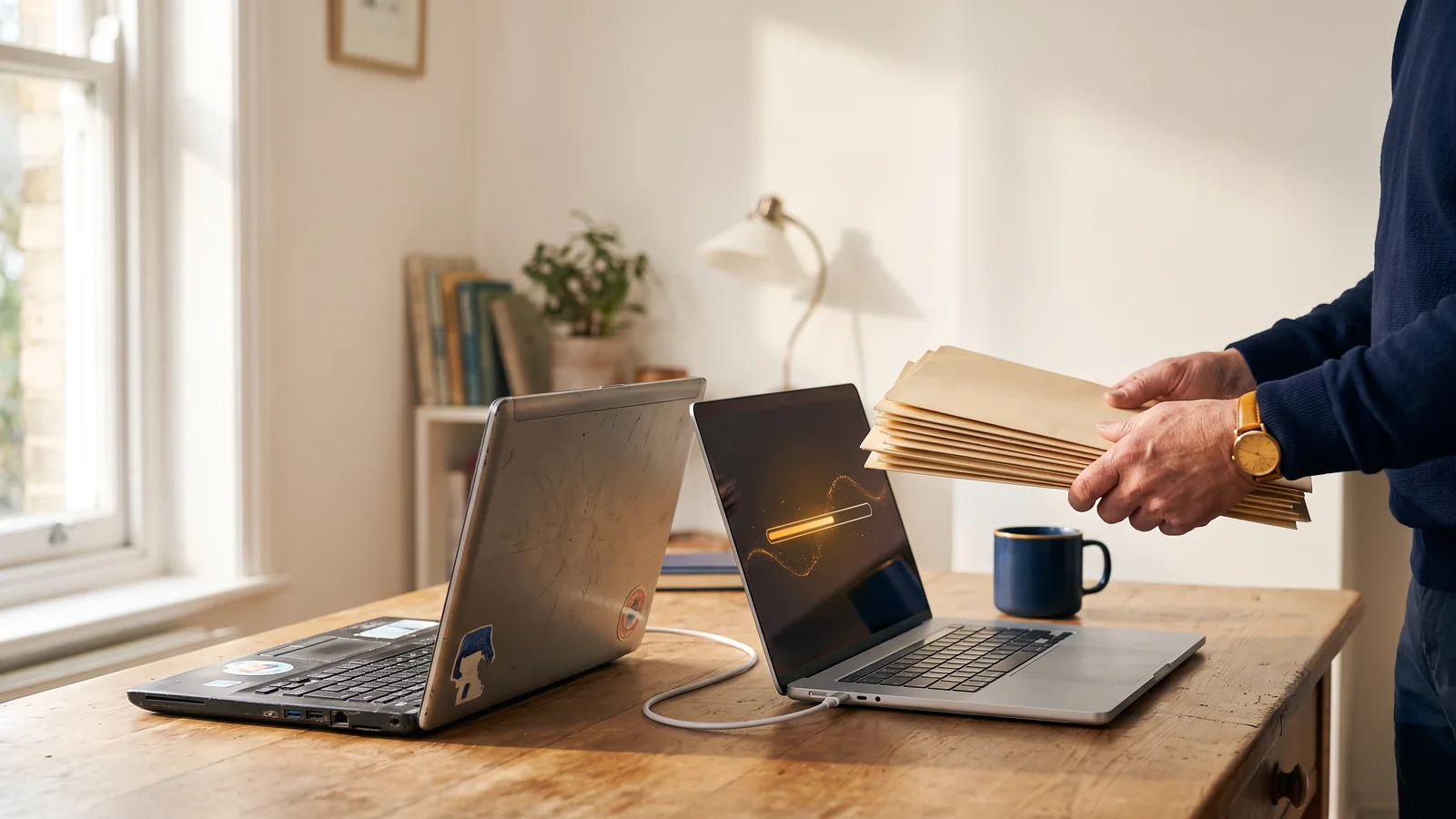
Windows moves your files and settings well, your programs barely at all, and your licences only if you prepared them beforehand. Pick the transfer method that matches what actually needs to move, back the old machine up first, and verify the result on the new laptop the same day.
The new laptop is out of the box, charged, and logged in, and then comes the question that decides your weekend: how does everything get across from the old machine?
Copying your Documents folder to a USB stick genuinely does cover most of it. Photos, spreadsheets, that genealogy folder: a plain file copy handles the things you'd name if someone asked what's on your computer.
What it doesn't cover is the invisible half. Program settings, app logins, browser profiles, Wi-Fi passwords, printer drivers and software licences don't live in Documents, and each one surfaces as a small daily failure for months: a bookmark list that vanished, an app that wants its licence key, a scanner that no longer scans. Miss one preparation step and a routine move can turn into a recovery job; a proper backup of the old machine is the safety net under the whole project.
Here's the point: a transfer succeeds when it matches what actually needs to move, and fails when it assumes "copy the files" was the whole job. Work through what transfers, choose the method honestly, and verify before you retire the old PC.
What actually transfers to a new laptop, and what doesn't?
Files and personal settings transfer well; programs rarely move at all; licences move only by their own rules. Knowing which category each thing you own falls into is the whole planning stage, and it takes ten minutes with this table:
| What | Moves automatically? | How it moves |
|---|---|---|
| Documents, photos, videos | Yes | File copy, cloud sync, or Windows Backup |
| Desktop, wallpaper, themes | Yes | Windows Backup settings sync |
| Browser favourites and passwords | Mostly | Browser sync account (Edge, Chrome) |
| Installed programs | No | Reinstall from download or store |
| Software licences | Per product | Sign-in accounts or key re-entry |
| Wi-Fi passwords | Yes, with Windows Backup | Settings backup |
| Printer and scanner drivers | No | Reinstall from the maker's site |
| Email (app plus data) | Depends | Modern accounts re-sync; old POP data needs a manual move |
Microsoft's own retired transfer tool drew the same boundary in writing: its documentation listed applications, saved passwords, Program Files and BitLocker-encrypted drives among the things that do not transfer, and OneDrive files simply re-sync on sign-in rather than being copied. That boundary hasn't changed with the tools; only the mechanism has.
Two categories deserve a second look before you start. Bundled security trials and manufacturer utilities from the old laptop almost never deserve migrating, since fresh versions exist for the new machine. And anything tied to hardware, such as very old scanner suites or dongle-licensed software, may have no working driver on a modern laptop at all; it's kinder to find that out during planning than after the old PC is wiped.
What's the easiest way to transfer everything to a new laptop?
The easiest method is the one that covers what you actually own: cloud sync for file-centric households, an external drive for big one-shot moves without fast broadband, and Windows Backup for the widest automatic net on supported machines. "Everything" is doing the work in that sentence, so match the tool to it honestly.
| Method | Effort | Captures | Watch out for | Best when |
|---|---|---|---|---|
| Cloud sync (OneDrive) | Lowest | Files in synced folders | Only what's in the synced folders; storage limits | Files are the bulk of your data and broadband is decent |
| External drive copy | Moderate | Any files you select, any size | Manual, so omission is on you; single copy in transit | Big photo/video libraries, slow or metered internet |
| Windows Backup and Restore | Lowest for settings | Files in chosen folders, settings, app pins, Wi-Fi | Microsoft account required; work/school accounts unsupported; 5 GB free OneDrive storage | New Windows 11 laptop, consumer Microsoft account, settings matter |
One method is worth naming in the past tense. Microsoft's dedicated PC-to-PC transfer experience, which paired the two machines over Wi-Fi during setup, now carries a retirement notice: "This feature is no longer available. Use Windows Backup and Restore instead." Older guides still recommend it, which is why your research may have felt contradictory (checked 2026-09-07).
The methods also mix well, and most real transfers should. Cloud sync handles the files while you hand-reinstall the three paid programs you actually use; that combination beats any single method for effort-to-coverage. Whatever you pick, the new-device setup framing stays the same: files verified opening on the new laptop before the old one loses its standing as the only copy.
How do you move programs and licences to a new computer?
Modern programs mostly move by reinstall-and-sign-in: download the app on the new laptop, sign in, and your settings arrive from your account. That covers Microsoft 365, browsers, Spotify, and most subscription software; nothing is "transferred" so much as logged back in.
The exceptions are where licences have rules. Microsoft's activation documentation (checked 2026-09-07) distinguishes a digital licence, tied to the hardware it was installed on, from a 25-character product key that travels with its owner. Moving to different hardware can leave a digital licence behind, and the recovery route is the Activation Troubleshooter with the "I changed hardware on this device recently" option, which only works if the licence was linked to your Microsoft account beforehand. Product keys reactivate directly, but only into the same edition: Home to Home, Pro to Pro.
The honest prep step is an hour with the old machine listing what's licensed. Note the programs you'd reinstall, where each licence lives (account sign-in, email confirmation, or a boxed key), and deactivate anything that limits installations before the old PC goes. Legacy software is the category to be realistic about: a program that needed Windows 7-era components, or a scanner suite whose maker no longer exists, won't make the journey no matter which method you choose.
What must you do before you start the transfer?
Back up the old machine fully before anything else, because a transfer that goes wrong should never be able to destroy the original. Then gather credentials, charge both machines, and only then begin moving files.
The backup comes first for an unglamorous reason: migration tools and file copies read the old disk intensively, and an ageing drive can fail under exactly that workload. A current backup (automated local plus cloud is the standard I fit) turns that failure from a catastrophe into an inconvenience. Where a laptop already shows signs of a failing disk, copy the irreplaceable files off first and treat the migration as recovery rather than routine.
The credential checklist is the other half. Know your Microsoft account password and have its second factor to hand, since setup will ask repeatedly; the same goes for your browser sync account, email passwords, and the Wi-Fi key. Check whether either machine's drive is BitLocker-encrypted, and have the recovery key saved somewhere that isn't that drive.
When is a transfer worth paying someone to do?
Paying earns its keep when three things collide: a lot of data, programs with licences and quirks, and one deadline (the old machine is leaving, or the new one is needed working tomorrow). Each is manageable alone; together they're a weekend of surprises.
A professional transfer is a watched process with a verification step: files get opened on the new laptop, programs get signed in, printers get tested, and the old machine stays intact until you've lived with the new one for a few days. My new-device setup runs on-site or over a remote screen-share at published rates (£25 per 15 minutes remote, £50 on-site visit minimum, £75 per hour capped), and the verification is the part DIY transfers skip. The people who call me are usually halfway through a half-finished manual move with a question about the licence half; that cleanup is recoverable, but it costs more than the planned version.
The DIY route remains genuinely fine for a file-centric household with account-based software, and this guide exists so you can do it properly. Choose honestly between your data shape and your patience.
Transfer FAQs
Can I use a cable to transfer files between two laptops?
Not directly over a plain USB cable on modern Windows. Use an external drive, cloud sync, or network-based backup; a dedicated transfer cable is legacy hardware that current Windows doesn't support.
Does Windows 11 have a built-in transfer tool?
Windows Backup is the built-in route now: it saves folders, settings, app pins and Wi-Fi to your Microsoft account and restores them during new-PC setup. Microsoft's older pairing-based PC-to-PC transfer tool has been retired.
Do I have to buy my programs again for a new laptop?
Usually not. Subscription and account-based software just signs in again; boxed or key-licensed programs reactivate with their key. Check each licence's rules before the old PC goes, and deactivate where required.
How long does a full transfer take?
A file-centric move over cloud sync finishes in an evening. A program-heavy migration with licence recovery and printer setup is realistically a half-day, which is when a watched professional transfer starts making sense.
The move itself is the easy half once it's planned; the plan is what prevents the month of "where did that go" afterwards. Audit what you own, back the old machine up, match the method to the data, and verify before retirement.
The encouraging trend is that Microsoft keeps pulling more of this into the account: settings, app pins and preferences now follow your sign-in automatically, and each Windows generation migrates a little more of itself. Set your accounts up properly on this new laptop and the next move will be smaller still. If you're in Ascot, Bracknell or Virginia Water and would like the watched version, more about the person behind the advice is here, and a quick SSD health check on the new machine before you fill it is never a bad opening move.