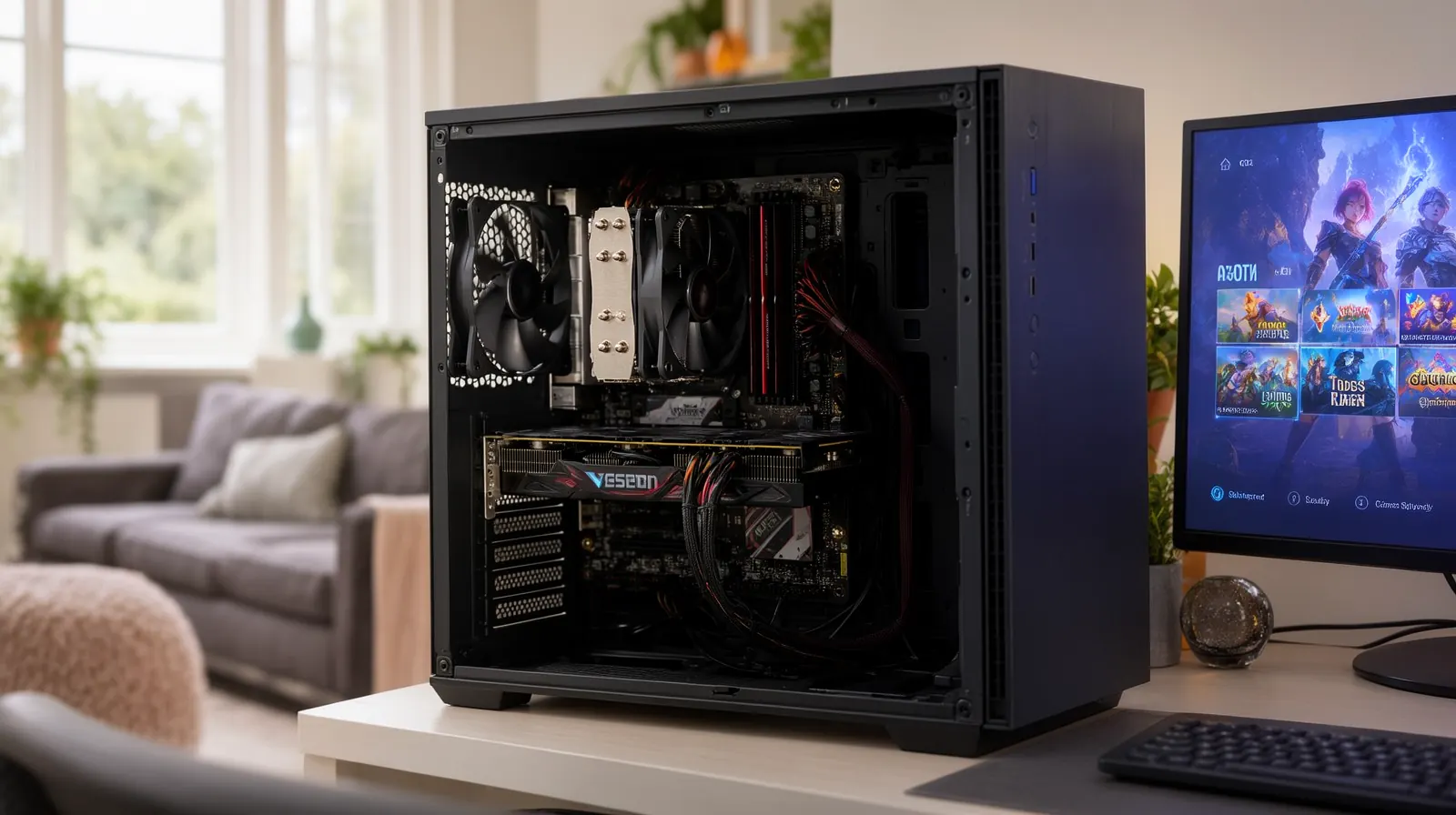
Gaming PC optimisation means finding what is really holding your games back before you spend money on parts. Check that Windows is using your graphics card and your monitor's full refresh rate, update the graphics driver, keep games on an SSD and keep the case cool. Most stutter and slow loading comes back to one of those.
None of the checks below needs special software, and none of them risks your saved games. Work through them in order and test a game you know well after each one, so you can tell which change made the difference.
Match the symptom to the fix
Different problems feel similar from the sofa, so start by naming exactly what you see. A long wait before the match starts is a different fault from a frame rate that sinks after twenty minutes of play.
| What you notice | Likely cause | First move |
|---|---|---|
| Long load screens; levels and maps crawl in | Windows or the game sits on an old hard disk drive | Check the drive type in Task Manager |
| Fans roar and stutter gets worse the longer you play | Dust and dried thermal paste, so the hardware slows itself to cool down | Clear the vents and give the case breathing room |
| Frame dips in newer games on a decent graphics card | An old driver, background load or too little memory | Update the driver and watch Task Manager |
| The game looks less smooth than the monitor promised | Windows is running the screen below its top refresh rate | Check Advanced display in Settings |
| Online matches lag but single-player runs fine | The network path, not the PC | Look at the router and Wi-Fi before buying parts |
Check the Windows gaming settings
Windows 11 sets most of this up for you, but updates, new monitors and old tweak guides can leave a setting in the wrong place. Microsoft lists the ones worth checking on its Windows 11 gaming page.
- Game Mode: open Settings > Gaming > Game Mode. Microsoft says it should be on by default, so if it is off, someone or something turned it off.
- Graphics defaults: open Settings > System > Display > Graphics and select Change default graphics settings. Microsoft suggests turning on hardware-accelerated GPU scheduling and optimisations for windowed games here, and Auto HDR only if you have an HDR monitor.
- Refresh rate: open Settings > System > Display > Advanced display and pick the rate next to Choose a refresh rate. The list depends on what your display supports, so a 144 Hz monitor left at 60 Hz is a quick win. Microsoft's refresh rate guide walks through it.
- Power mode on a gaming laptop: look under Settings > System > Power & battery with the charger plugged in. A battery-saving mode left on will hold the machine back.
Change one setting at a time. If a game gets worse after a change, put it back; not every game or graphics card responds the same way.
Keep the graphics driver current
The graphics driver is the software that lets Windows and your games talk to the card, and new games often expect a recent one. Get it from the card maker or from Windows Update, never from a "driver updater" download you found through an advert.
- NVIDIA cards: the NVIDIA driver page offers a manual driver search and the NVIDIA App, which keeps the driver up to date for you.
- Windows Update: under Settings > Windows Update > Advanced options > Optional updates you may find a driver too.
If a new driver brings crashes or flickering, note the version number before you roll it back. That detail saves time if you end up asking for help.
Storage: the cure for long load screens
Press Ctrl + Shift + Esc to open Task Manager, go to Performance and select each disk: Windows labels it HDD or SSD. If Windows or your game library lives on an HDD, that is the usual reason for long loading. Check free space too, under Settings > System > Storage, because modern games and their updates are large.
An SSD upgrade is the fix for slow loading, not for a low frame rate. I fit the drive for £89 plus the drive at cost, move Windows across and migrate your Steam, Epic and other launcher libraries so nothing has to download twice. My guide to an SSD upgrade versus a new machine helps you weigh it up.
Heat: stutter that gets worse as you play
When a processor or graphics card runs too hot it slows itself down to survive, which shows up as stutter that builds through a session while the fans get louder. Keep the case off the carpet, leave space behind and around the vents, and keep pets and curtains away from the intakes.
Years of dust and dried-out thermal paste need a hands-on clean. If you are not comfortable opening the case, leave it: a thermal service covers the internal dust-out, fan servicing and fresh paste on the CPU cooler and the graphics card.
Online lag is often the network
If single-player games run smoothly but online matches lag, the PC is probably fine. Test another device on the same connection, and try the PC closer to the router or on a cable. Router placement and Wi-Fi coverage are worth fixing before you spend anything on hardware, and the same applies to a console in the same house.
How I can help with gaming PC optimisation
Berkshire IT Services offers gaming PC optimisation from Ascot. I am fully mobile: the engineer comes to your home across Ascot and nearby towns, or tunes the software side by secure remote support when the fault allows it. The work covers SSD upgrades and game library migration, thermal servicing, RAM, fitting a graphics card you have bought, driver tuning, streaming setup and Windows gaming settings. Custom PC building is not a service I offer, console work is setup and networking only, and the service does not repair Apple Macs.
Phone and remote diagnosis is free. Standard rates are £25 per 15 minutes, with the first hour capped at £75 for remote support and weekday home visits. At weekends home visits are not capped: the first hour is £75 in SL5 and £100 elsewhere. There is no travel surcharge. No-Fix, No-Fee (t&cs) applies to repair work, but the visit fee still applies once the engineer has arrived. See my published pricing and visit terms before you book.
A sensible next step
Check Game Mode, the refresh rate and the driver tonight; they cost nothing. If the load screens are still long or the fans still roar, call (01344) 288177 or book online, and tell me which game, what you see and what you have already tried. If your PC is slow outside games too, start with my guide to fixing a slow computer.
Gaming PC optimisation FAQs
Does Windows Game Mode make games run faster?
Game Mode is a Windows setting for gaming, and Microsoft says it should be on by default. Check it under Settings > Gaming > Game Mode. It will not cure an old graphics driver, a slow hard drive or an overheating case, so work through those as well.
Will an SSD give me a higher frame rate?
An SSD is the fix for long load screens, because Windows and the game files load from it much faster than from an old hard drive. If the frame rate drops during play, look at the graphics driver, memory, background load and heat first.
Do you build gaming PCs or repair consoles?
No. Custom PC building is not a service I offer, and console work is limited to setup and network optimisation, with no console hardware repairs. I work on the Windows gaming PC you already own: storage, memory, cooling, graphics card fitting, drivers and settings.
How much does gaming PC optimisation cost?
Phone and remote diagnosis is free. An SSD upgrade is £89 fitting plus the drive at cost. Other work is £25 per 15 minutes, with the first hour capped at £75 for remote support and weekday home visits. At weekends the first home-visit hour is £75 in SL5 and £100 elsewhere.