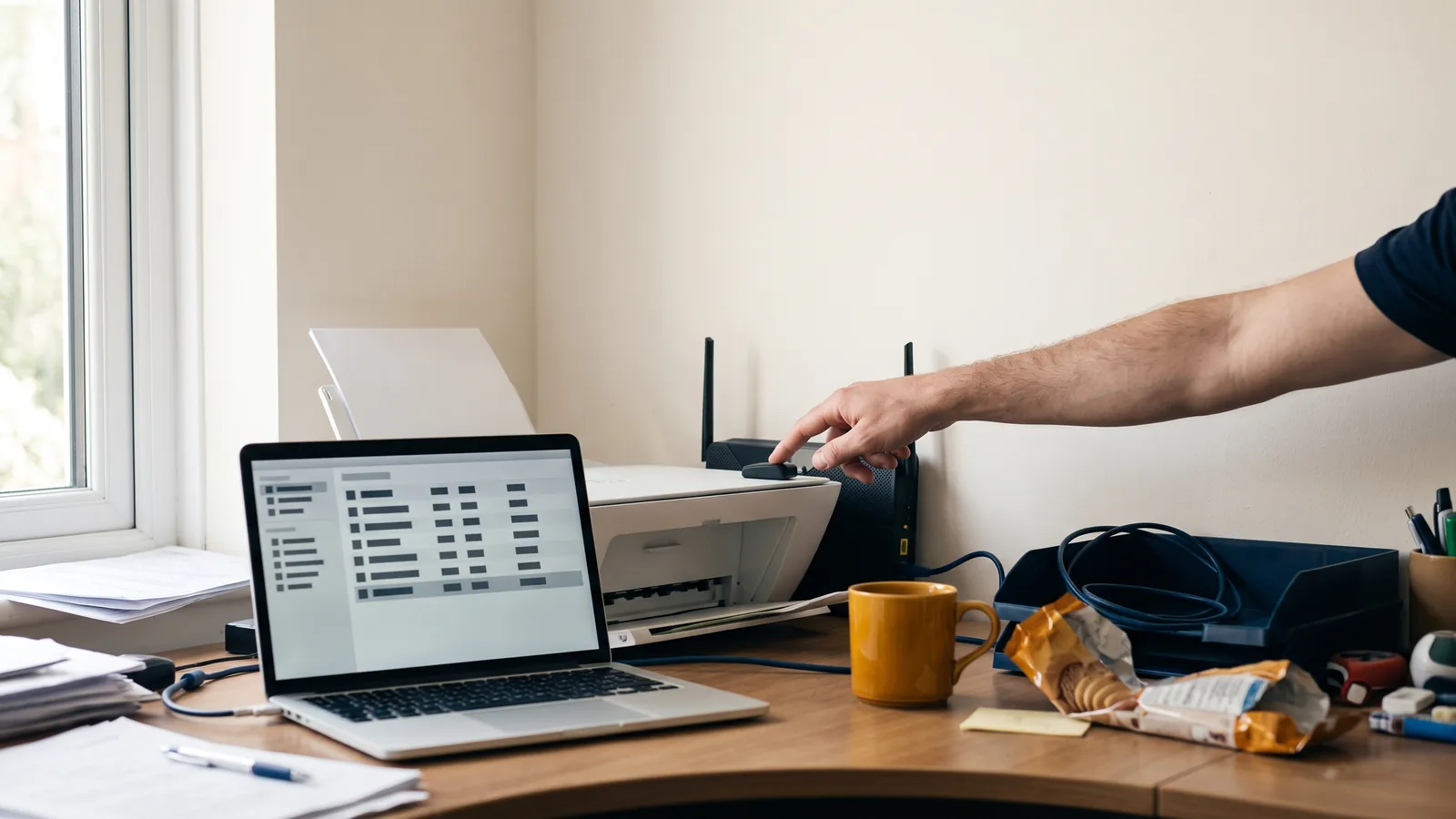
If alien civilisations ever study human technology, they will marvel at how we split the atom, built smartphones with more compute power than NASA, and yet remain completely powerless before a wireless inkjet printer. The culprit is mundane in the overwhelming majority of cases — a jammed print queue, the printer hopping to the wrong network, or a changing IP address — and the three-step sequence below (power-cycle in order, clear the queue, assign a fixed IP) brings an offline printer back to life in about five minutes.
The dreaded "Printer Offline" error is by far the single most common tech frustration reported by households across Berkshire. Here is what is actually going on under the hood and how to fix it for good.
| Underlying cause | What it looks like | The fix below |
|---|---|---|
| Jammed print queue | Stuck documents block everything behind them | Step 2 — clear the queue |
| Printer on the wrong network | Works on your phone, not your PC | Step 1 — power-cycle in order |
| Changing IP address | Fine for weeks, then randomly "Offline" | Step 3 — assign a fixed IP |
Why Do Wireless Printers Mysteriously Drop From the Network?
Wireless printers drop from the network because your router reassigns internal IP addresses — such as 192.168.1.18 — to every device in your home each time it restarts or updates overnight. When your printer goes to sleep in low-power standby mode, your router may reassign that exact address to a smartphone or smart TV.
When your Windows PC or Mac sends a print command to the printer's previous IP address, nobody answers — and Windows unhelpfully proclaims that the printer is "Offline".
🔧 Quick 3-Step Sequence to Wake Up an Offline Printer:
- Power Cycle in Proper Order: Turn off both printer and router. Power up the router first, wait 3 minutes, then turn on the printer.
- Clear the Windows Print Queue: Go to Settings > Bluetooth & Devices > Printers, open the print queue, and click Cancel All Documents to purge stuck spool files.
- Assign a Fixed Static IP: In your router settings, reserve a permanent IP address for the printer's MAC address so it never changes again.
Professional Wireless & AirPrint Setup Across Berkshire
Still having trouble connecting your HP, Canon, Epson, or Brother printer? My dedicated wireless printer setup and troubleshooting service resolves spooler corruptions, scanner driver errors, and iPad AirPrint connection issues.
I can connect remotely via my secure remote IT support software (£25 per 15 minutes) or dispatch a technician for a home visit in Ascot, Bracknell, or Windlesham.
Printer Offline FAQs: Fixes, Costs & When to Call
How do I stop my wireless printer going offline again?
Fix the cause, not the symptom: power-cycle the router before the printer, purge the stuck print queue, and reserve a fixed IP address for the printer in your router settings. The fixed IP is the part most households skip — without it, the "Offline" error usually returns after the next router restart.
Why does my printer work from my phone but not my Windows PC?
That pattern almost always points to the PC side, not the printer: a jammed Windows print queue or a stale driver after an update, while your phone connects directly over AirPrint or the manufacturer's app. Clearing the queue (Settings > Bluetooth & Devices > Printers) fixes it more often than not.
How much does printer help cost in Berkshire?
Diagnostics are free. Remote printer fixes run at £25 per 15 minutes, and home visits start at £50 with the hourly rate capped at £75 — no travel surcharge anywhere in my service area. If I cannot fix your printer, you pay nothing under the No-Fix, No-Fee guarantee.
Can you sort a printer without coming to my house?
Usually, yes. Spooler errors, driver faults and network-drop problems are resolved daily by secure remote screen-share. If the fault is physical — a paper path jam, a failed part — I will tell you plainly and a home visit is booked only if it is worth your money.